

Dotdigital Integration
Connect your CRM or fundraising platform to Dotdigital using Bridgit
Bridgit is an Integration Platform as a Service (iPaaS) built for charities. It connects the tools you already use, cleans and maps your data automatically, and delivers it exactly where you need it.
The Dotdigital integration lets you sync supporter data from your CRM or fundraising platform into Dotdigital, so your marketing team can send timely, accurate communications without manual data exports. Bridgit can also pull engagement and consent data back from Dotdigital into your source platform.
Setting up the integration
Bridgit is designed to be fully self-service. You can follow the five steps below and set up your integration yourself at any time. If you'd prefer a hand getting started, or have a more complex setup in mind, our team is always available to help.
What you'll need to have ready:
- Your Dotdigital API username, password, and API endpoint (see Step 1 below)
- Access to your Dotdigital account (account owner or admin permissions)
- A clear idea of which data fields you want to sync and where they should map to in Dotdigital
How it works
Setting up a Dotdigital integration in Bridgit follows five steps.
Step 1: Connect your Dotdigital API
Before setup can begin, you'll need to create a dedicated API user in Dotdigital. Dotdigital uses a username and password combination for API access, not a single API key.
1. Go to API settings
- Log in to your Dotdigital account
- Click the User menu (your profile icon or name, bottom-left corner)
- Go to Settings > Access
- Select the API users tab
2. Create an API user
- Click New User
- Username - Dotdigital auto-generates this (it will look like
apiuser-123@dotmailer.com). Make a note of it - Password - Set a secure password. Save it immediately as it won't be shown again
- Status - Set to Enabled
- Rate Limiting - Select Tiered
- Click Save
3. Note your API endpoint
On the same API users page, look for your API endpoint near the top. It will be one of:
https://r1-api.dotdigital.comhttps://r2-api.dotdigital.comhttps://r3-api.dotdigital.com
Your endpoint depends on which region your Dotdigital account is hosted in. You'll need to pass this to the Bridgit team along with your API username and password.
Security note: Always create a separate API user for each external system you connect. This means you can revoke access to one integration without affecting others.
Step 2: Connect your source platform
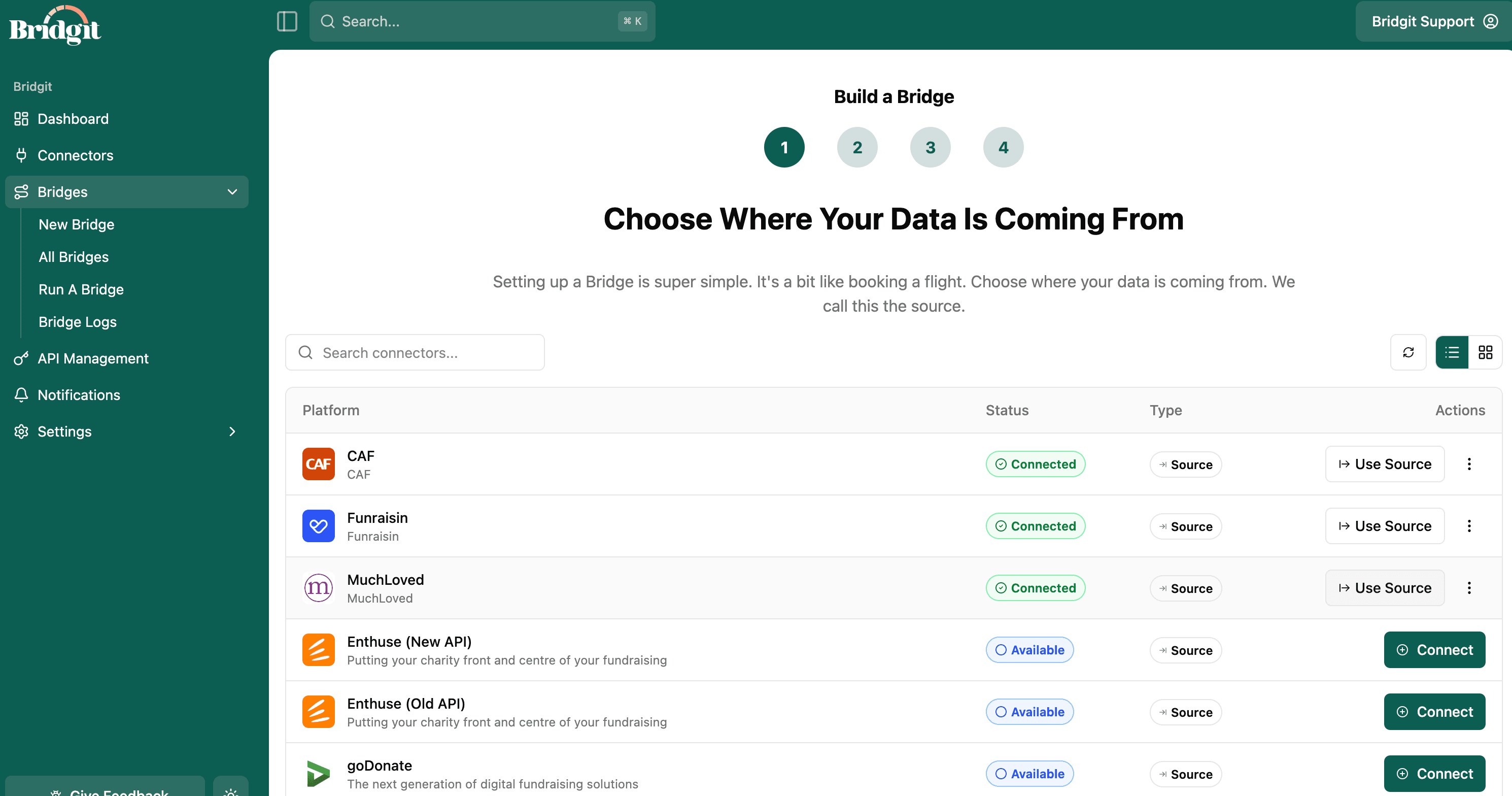
This is where your data is coming from: your CRM or fundraising platform (for example, Salesforce, iDonate, Raisely, or MuchLoved). Once you've chosen your platform, Bridgit will guide you through how to connect it. You'll just need your account credentials or API details for that platform to hand.
Step 3: Choose Dotdigital as your destination
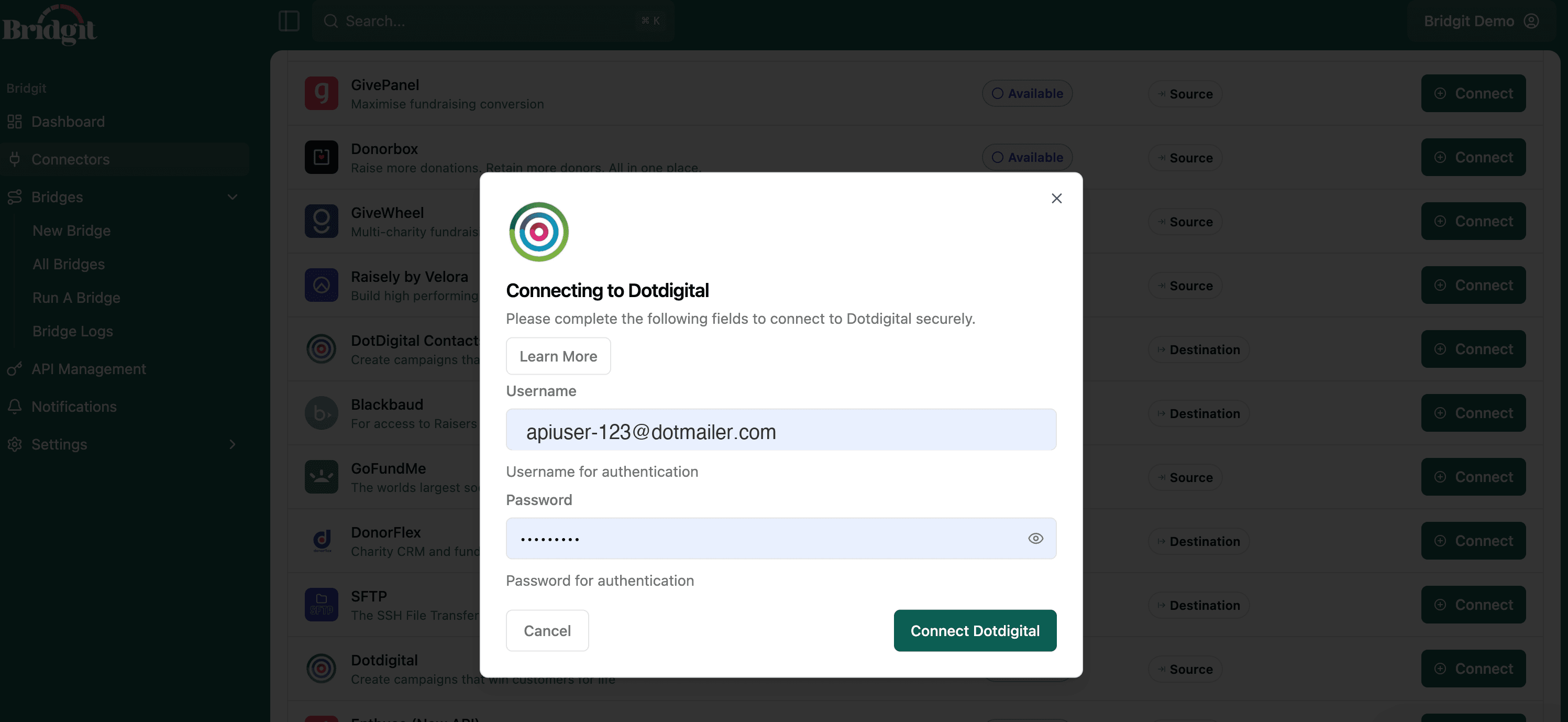
Select Dotdigital as the destination for your Bridge. Once selected, Bridgit will prompt you to connect your Dotdigital account using the API credentials from Step 1. Bridgit will then deliver your supporter data directly into Dotdigital, including:
- Supporter and donor contact details
- Donation records (amounts, dates, campaigns)
- Gift Aid status
- Campaign codes
Bridgit can also pull data back from Dotdigital into your source system:
- Contact lists and address books
- Email engagement metrics (opens and clicks)
- Opt-in and consent preferences
Step 4: Map your fields and create rules
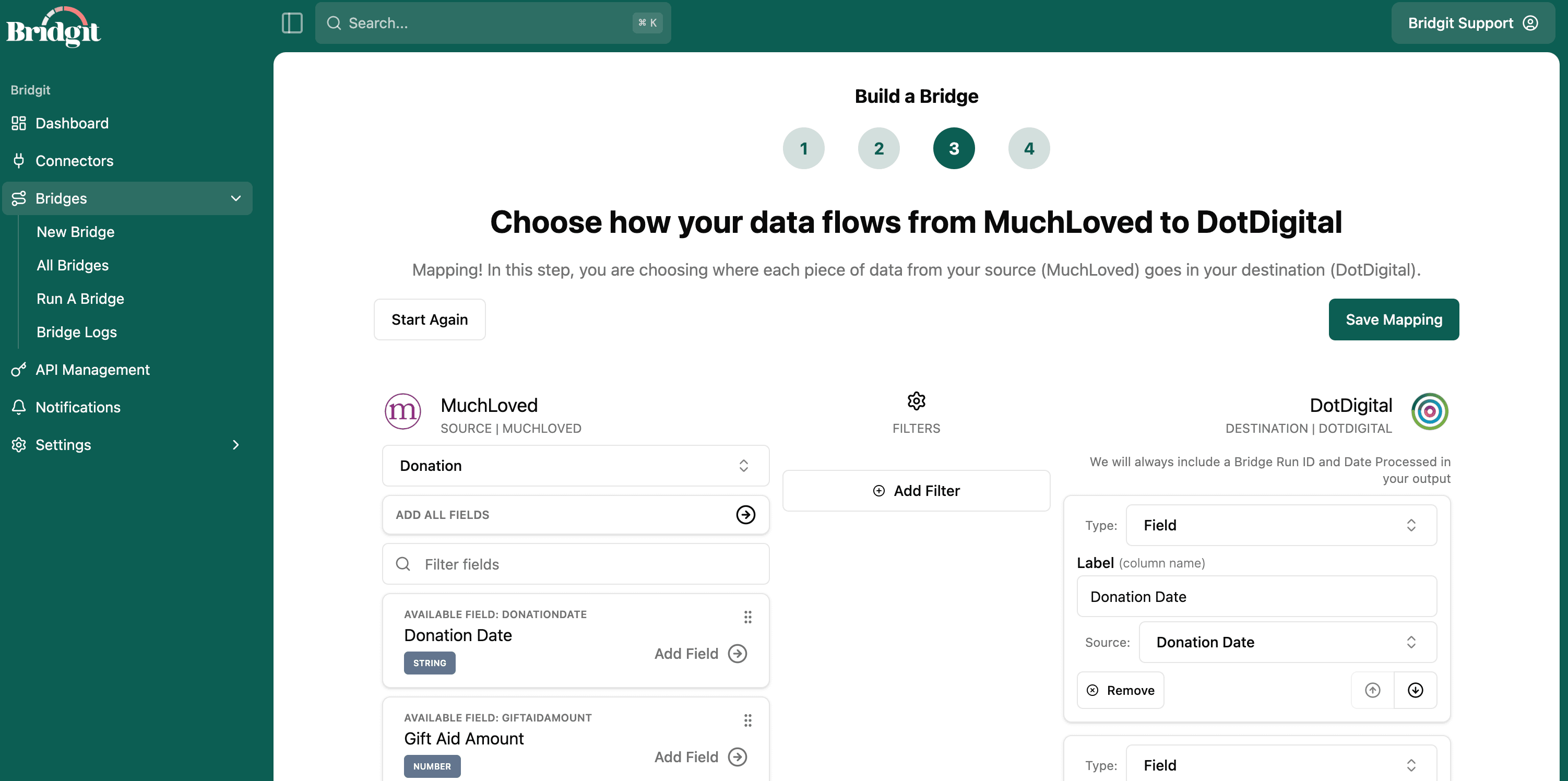
Use Bridgit's field mapper to match your source data to the correct fields in Dotdigital. You can apply transformation rules to clean and reformat data along the way, for example:
- Automatically populate campaign codes using IF statements
- Combine or split name fields
- Standardise date formats
Step 5: Save your Bridge
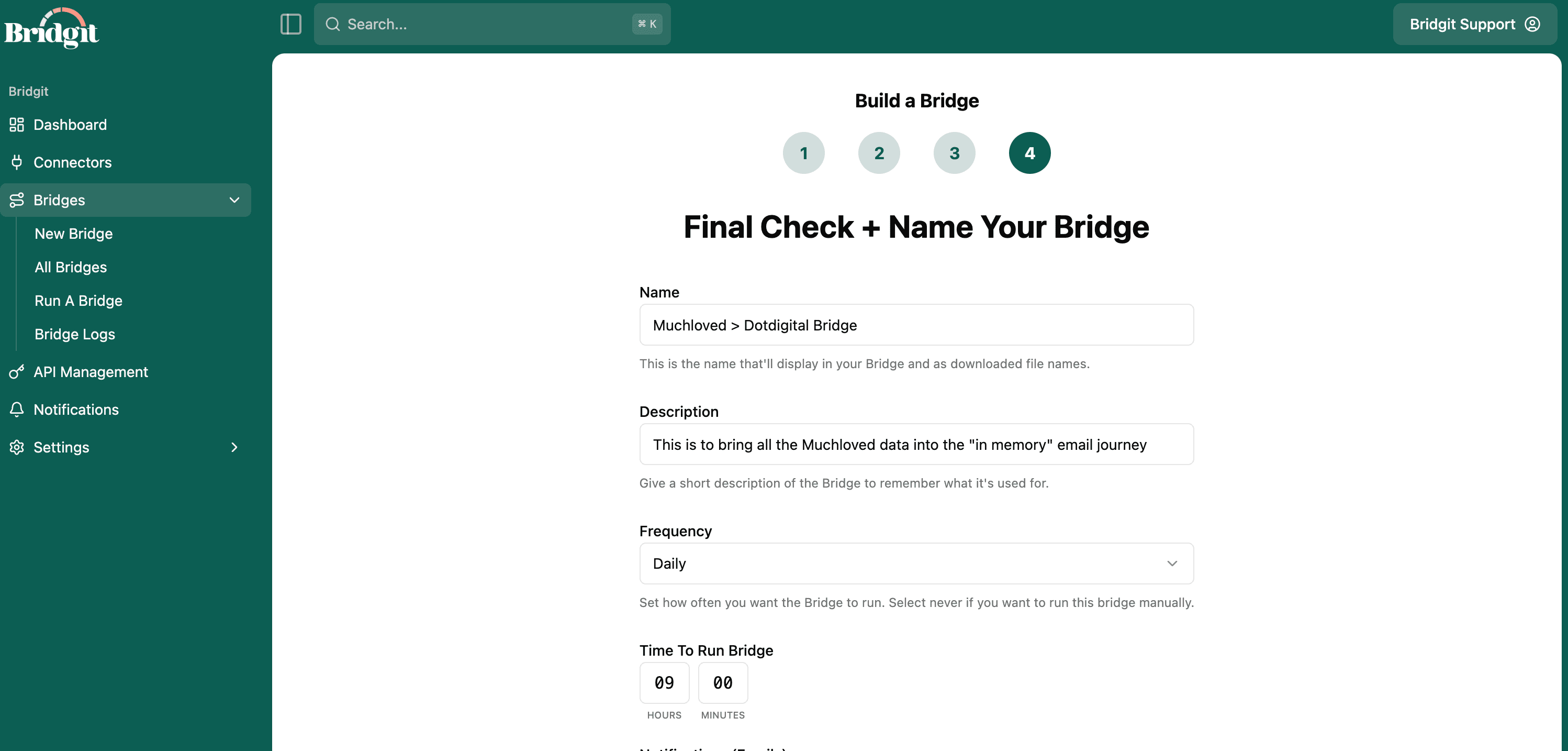
Set how often the Bridge should run and who should be notified, then save it. Bridgit does the rest, syncing your data automatically on the schedule you choose.
Ongoing support
Once your Bridge is live, it runs automatically on the schedule you set with no manual intervention needed. If you ever want to adjust field mappings, add new data points, or change the sync schedule, you can do that yourself in Bridgit or reach out to us for help:
Getting started
To begin setup, contact us at hello@hibridgit.com and we'll arrange an onboarding session.